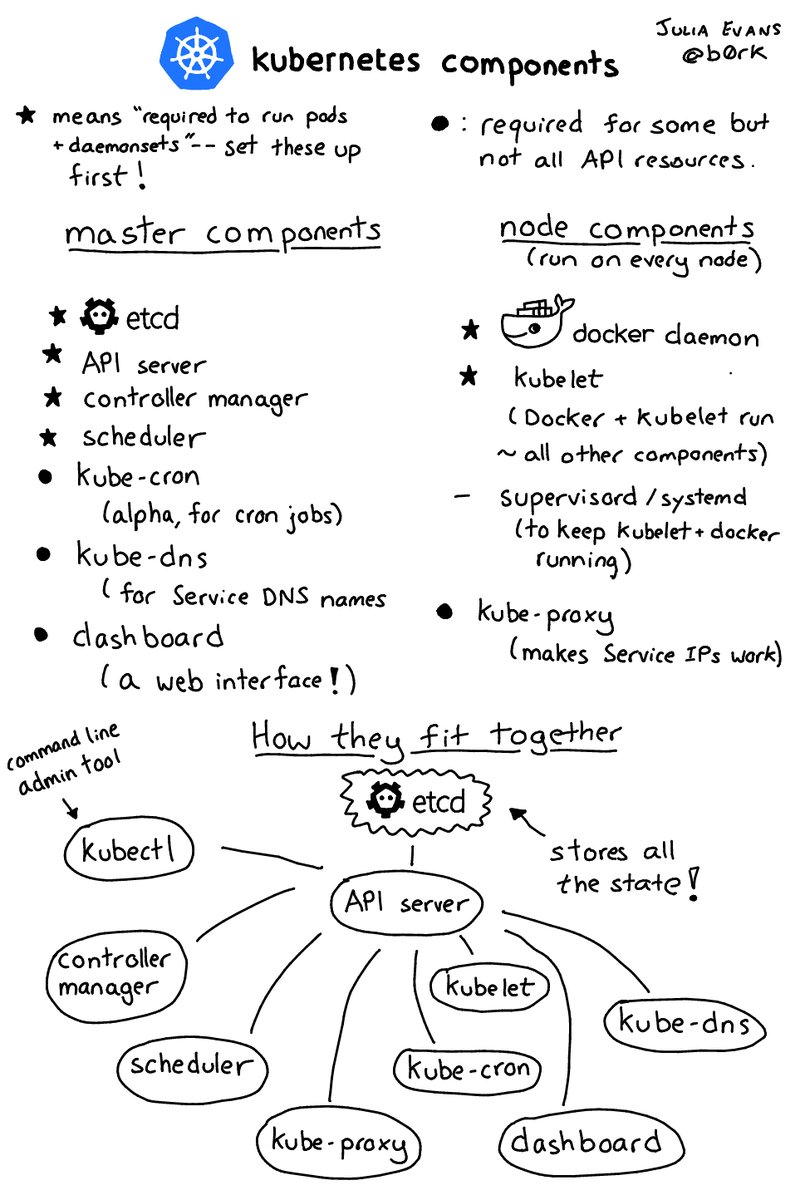
Source Twitter: https://pbs.twimg.com/media/DBzjTTKUIAA1OvE.jpg

Source Twitter: https://pbs.twimg.com/media/DBzjTTKUIAA1OvE.jpg
Top REQUEST methods
varnishtop -i ReqMethod
Top URLs that MISS the cache
varnishtop -i BereqURL
Top URLS that HIT the cache
varnishtop -i ReqURL
All URLs that HIT the cache in real time
varnishlog -g request -q ‘VCL_call eq HIT’ | grep reqURL
All URLs that MISS the cache in real time
varnishlog -g request -q ‘VCL_call eq MISS’ | grep reqURL
All URLs that MISS the cache in real time
varnishlog -i BereqURL
Look at an incoming client request of a specific URL
varnishlog -c -q “ReqUrl eq ‘/'”
Look at a a backend request of a specific URL
varnishlog -i -q “BereqURL eq ‘/'”
See requests for one specific Hostname
varnishlog -c -q “ReqHeader eq ‘Host: www.mydomain.com'”
See the age of the cache objects for a specific hostname
varnishlog -c -q “ReqHeader eq ‘Host: www.mydomain.com'” | grep Age
All 404
varnishlog -b -q “ObjStatus eq 404”
Howto Install the OpenStack Command Line Tools on Mac OSX
Install home brew from http://brew.sh/
Install Python with brew
Install OpenStack Stuff
ruby -e "$(curl -fsSL
https://raw.githubusercontent.com/Homebrew/install/master/install)"
brew install python
pip install python-novaclient
brew install pkg-config libffi
export PKG_CONFIG_PATH=/usr/local/Cellar/libffi/3.0.13/lib/pkgconfig/
pip install cffi
pip install python-glanceclient
pip install python-neutronclient
pip install python-heatclient
Download openrc file from openstack dashboard
https://<openstack url> > Projects > Access and Security > API Access > Download Openstack RC file
Run this file, or add a bash function to your .bashrc or .bash_profile depending on what approach you took you’ll need to source whatever file you used. .bashrc .bash_profile openrc.sh
Test command line tools
source ~/.bashrc
nova list
glance image-list
keystone user-list
neutron net-list
Modes
Vi has two modes insertion mode and command mode. The editor begins in command mode, where the cursor movement and text deletion and pasting occur. Insertion mode begins upon entering an insertion or change command. [ESC] returns the editor to command mode (where you can quit, for example by typing :q!). Most commands execute as soon as you type them except for “colon” commands which execute when you press the return key.
Quitting:
‘:x’ Exit, saving changes
:q Exit as long as there have been no changes
ZZ Exit and save changes if any have been made
:q! Exit and ignore any changes
Inserting Text:
i Insert before cursor
I Insert before line
a Append after cursor
A Append after line
o Open a new line after current line
O Open a new line before current line
r Replace one character
R Replace many characters
Motion:
h Move left
j Move down
k Move up
l Move right
w Move to next word
W Move to next blank delimited word
b Move to the beginning of the word
B Move to the beginning of blank delimted word
e Move to the end of the word
E Move to the end of Blank delimited word
( Move a sentence back
) Move a sentence forward
{ Move a paragraph back
} Move a paragraph forward
0 Move to the begining of the line
$ Move to the end of the line
1G Move to the first line of the file
G Move to the last line of the file
nG Move to nth line of the file
:n Move to nth line of the file
fc Move forward to c
Fc Move back to c
H Move to top of screen
M Move to middle of screen
L Move to botton of screen
% Move to associated ( ), { }, [ ]
Deleting Text:
Almost all deletion commands are performed by typing d followed by a motion. For example, dw deletes a word. A few other deletes are:
x Delete character to the right of cursor
X Delete character to the left of cursor
D Delete to the end of the line
dd Delete current line
:d Delete current line
Yanking Text:
Like deletion, almost all yank commands are performed by typing y followed by a motion. For example, y$ yanks to the end of the line. Two other yank commands are:
yy Yank the current line
:y Yank the current line
Changing text:
The change command is a deletion command that leaves the editor in insert mode. It is performed by typing c followed by a motion. For wxample cw changes a word. A few other change commands are:
C Change to the end of the line
cc Change the whole line
Putting text:
p Put after the position or after the line
P Put before the poition or before the line
Buffers:
Named buffers may be specified before any deletion, change, yank or put command. The general prefix has the form “c where c is any lowercase character. for example, “adw deletes a word into buffer a. It may thereafter be put back into text with an appropriate “ap.
Markers:
Named markers may be set on any line in a file. Any lower case letter may be a marker name. Markers may also be used as limits for ranges.
mc Set marker c on this line
`c Go to beginning of marker c line.
‘c Go to first non-blank character of marker c line.
Search for strings:
/string Search forward for string
?string Search back for string
n Search for next instance of string
N Search for previous instance of string
Replace:
The search and replace function is accomplished with the :s command. It is commonly used in combination with ranges or the :g command (below).
:s/pattern/string/flags Replace pattern with string according to flags.
g Flag – Replace all occurences of pattern
c Flag – Confirm replaces.
& Repeat last :s command
Regular Expressions:
. (dot) Any single character except newline
* zero or more occurances of any character
[…] Any single character specified in the set
[^…] Any single character not specified in the set
^ Anchor – beginning of the line
$ Anchor – end of line
\< Anchor – begining of word \> Anchor – end of word
\(…\) Grouping – usually used to group conditions
\n Contents of nth grouping
[…] – Set Examples:
[A-Z] The SET from Capital A to Capital Z
[a-z] The SET from lowercase a to lowercase z
[0-9] The SET from 0 to 9 (All numerals)
[./=+] The SET containing . (dot), / (slash), =, and +
[-A-F] The SET from Capital A to Capital F and the dash (dashes must be specified first)
[0-9 A-Z] The SET containing all capital letters and digits and a space
[A-Z][a-zA-Z] In the first position, the SET from Capital A to Capital Z
In the second character position, the SET containing all letters
Regular Expression Examples:
/Hello/ Matches if the line contains the value Hello
/^TEST$/ Matches if the line contains TEST by itself
/^[a-zA-Z]/ Matches if the line starts with any letter
/^[a-z].*/ Matches if the first character of the line is a-z and there is at least one more of any character following it
/2134$/ Matches if line ends with 2134
/\(21|35\)/ Matches is the line contains 21 or 35
Note the use of ( ) with the pipe symbol to specify the ‘or’ condition
/[0-9]*/ Matches if there are zero or more numbers in the line
/^[^#]/ Matches if the first character is not a # in the line
Notes:
1. Regular expressions are case sensitive
2. Regular expressions are to be used where pattern is specified
Counts:
Nearly every command may be preceded by a number that specifies how many times it is to be performed. For example, 5dw will delete 5 words and 3fe will move the cursor forward to the 3rd occurence of the letter e. Even insertions may be repeated conveniently with thismethod, say to insert the same line 100 times.
Ranges:
Ranges may precede most “colon” commands and cause them to be executed on a line or lines. For example :3,7d would delete lines 3-7. Ranges are commonly combined with the :s command to perform a replacement on several lines, as with :.,$s/pattern/string/g to make a replacement from the current line to the end of the file.
:n,m Range – Lines n-m
:. Range – Current line
:$ Range – Last line
:’c Range – Marker c
:% Range – All lines in file
:g/pattern/ Range – All lines that contain pattern
Files:
:w file Write to file
:r file Read file in after line
:n Go to next file
:p Go to previos file
:e file Edit file
!!program Replace line with output from program
Other:
~ Toggle upp and lower case
J Join lines
. Repeat last text-changing command
u Undo last change
U Undo all changes to line
This command extracts the private key from the .pfx file. Once entered you need to type in the importpassword of the .pfx file. This is the password that you used to protect your keypair when you created your .pfx file. Once you entered the import password OpenSSL requests you to type in another password, twice!. This new password will protect your .key file.
openssl pkcs12 -in [yourfile.pfx] -nocerts -out [keyfile-encrypted.key]
Now let’s extract the certificate:
openssl pkcs12 -in [yourfile.pfx] -clcerts -nokeys -out [certificate.crt]
Just press enter and your certificate appears.
The command:
openssl rsa -in [keyfile-encrypted.key] -out [keyfile-decrypted.key]
Again you need to enter an import password. This time you need to enter the new password that you created in step 1. After that you’re done. You decrypted your private key. In the folder you ran OpenSSL from you’ll find the certifcate (.crt) and the two private keys (encrypted and unencrypted).
In some cases you might be forced to convert your private key to PEM format. You can do so with the following command:
openssl rsa -in [keyfile-encrypted.key] -outform PEM -out [keyfile-encrypted-pem.key]
Have fun
Read data from two files. In this case one file with ctid’s (openvz ve numbers). And one file with ip addresses.
#!/bin/bash

exec 7<$1 8<$2

    while read f1 <&7 && read f2 <&8
    do
      vzctl set $f1 --ipadd $f2 --save
    done
http://www.linuxjournal.com/content/bash-redirecting-input-multiple-files
Cut out selected fields of each line of a file.
Syntax
cut [-b] [-c] [-f] list [-n] [-d delim] [-s] [file]
| -b list | The list following -b specifies byte positions (for instance, -b1-72 would pass the first 72 bytes of each line). When -b and -n are used together, list is adjusted so that no multi-byte character is split. If -b is used, the input line should contain 1023 bytes or less. |
| -c list | The list following -c specifies character positions (for instance, -c1-72 would pass the first 72 characters of each line). |
| -f list | The list following -f is a list of fields assumed to be separated in the file by a delimiter character (see -d ); for instance, -f1,7 copies the first and seventh field only. Lines with no field delimiters will be passed through intact (useful for table subheadings), unless -s is specified. If -f is used, the input line should contain 1023 characters or less. |
| list | A comma-separated or blank-character-separated list of integer field numbers (in increasing order), with optional – to indicate ranges (for instance, 1,4,7; 1-3,8; -5,10 (short for 1-5,10); or 3- (short for third through last field)). |
| -n | Do not split characters. When -b list and -n are used together, list is adjusted so that no multi-byte character is split. |
| -d | The character following -d is the field delimiter (-f option only). Default is tab. Space or other characters with special meaning to the shell must be quoted. The delimiter can be a multi-byte character. |
| -s | Suppresses lines with no delimiter characters in case of -f option. Unless specified, lines with no delimiters will be passed through untouched. |
| file | A path name of an input file. If no file operands are specified, or if a file operand is -, the standard input will be used |
Example: Use cut to get your ipv4 IP address:
ifconfig eth0 |grep 'inet addr' |cut -d ':' -f 1,2 | cut -c 21- | cut -c -14
First check if the tun module is loaded on the host node
lsmod | grep tun
If not make sure you load it
modprobe tun
Allow your container to use the tun/tap device by running the following commands on the host node. This example would apply for container number 101
CTID=101

vzctl set $CTID --devnodes net/tun:rw --save

vzctl set $CTID --devices c:10:200:rw --save

vzctl set $CTID --capability net_admin:on --save

vzctl exec $CTID mkdir -p /dev/net

vzctl exec $CTID chmod 600 /dev/net/tun
Thats it restart your container and start installing openVPN.
This command is useful for search through log files. Where you want to match two keywords
Contents of the file test.txt
windows
linux windows
windows linux
nothing
This egrep command only matches linux windows
egrep "\<linux\>.*\<windows\>" test.txt